
What you’ll get
You will configure a single-page phone layout that eliminates nested folders, strips away notification badge anxiety, and simplifies how you interact with your applications. This setup takes fifteen minutes and works natively on both iOS and Android platforms.
Managing complex folder structures on your phone is a waste of mental bandwidth. If you spend time sorting apps into categories only to swipe past them or forget where they are, your design is failing you. By restricting your phone to one primary home screen page, you force yourself to build intentional habits.
Before you start
Open your phone and navigate to your settings.
- On iOS (iPhone): Go to
Settings > Home Screen & App Library. Under the “New App Downloads” header, select “App Library Only” to prevent new applications from cluttering your home screen layout. - On Android: Open your home screen settings (typically by long-pressing an empty space on the home screen and selecting settings) and verify that “Add new apps to Home screen” is disabled.
Steps
1. Clear the canvas
Go to your secondary home screen pages. Tap and hold an empty space on your home screen until the application icons begin to jiggle.
- On iOS: Tap the page dot indicator at the bottom of the screen. Uncheck all secondary pages to hide them from view.
- On Android: Swipe to your extra pages, press and hold an empty spot, and tap the trash icon at the top of each secondary layout page to delete them.
This moves all non-essential applications to your App Library or app drawer, leaving you with a blank canvas to build your main setup.
2. Configure the one-page rules
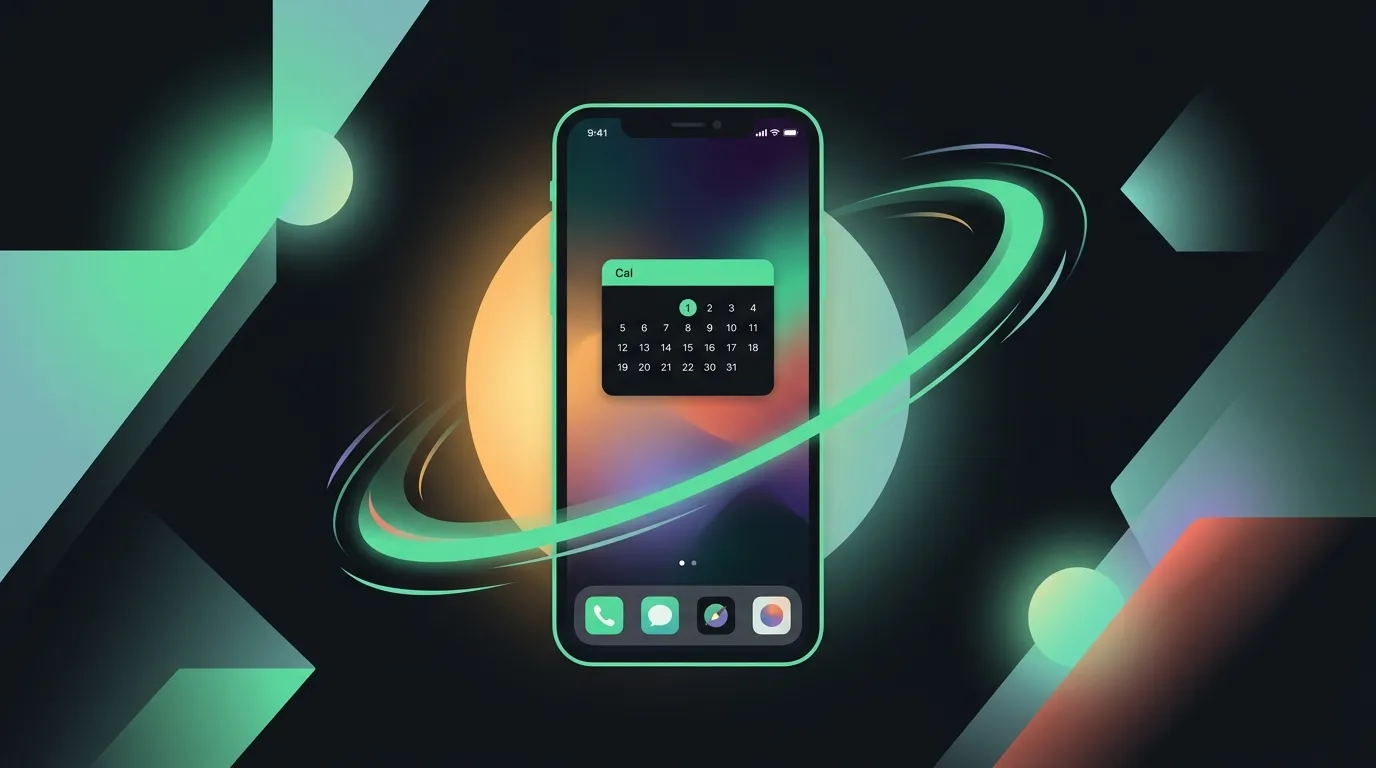
Select the four most critical utilities you use daily and place them in your phone’s bottom dock (typically phone, messages, browser, and task manager).
On the single remaining home screen page, place a maximum of eight application icons. These should be tools that support your daily focus rather than infinite feed loops. We recommend adding one large widget (such as a calendar list or a simple clock) to take up visual space, preventing you from filling the screen with icon grids. Leave empty spaces between your app icons to create a calm visual workspace.
3. Rely on system search
To launch any application that is not pinned to your main screen, use your phone’s built-in global search tool.
- On iOS: Swipe down from the center of the home screen and type the first two letters of the app name.
- On Android: Swipe up to open your app drawer and type your search query in the top search bar.
Searching for an app by name requires an active decision to open it. Swiping through grids of colorful folders encourages mindless clicking, while typing the name forces you to ask yourself if you actually need to open the app.
Common mistakes
- Recreating folders on the main page. Piling eight apps into a folder on your single home screen defeats the purpose of the layout. Keep icons flat and single.
- Muting notifications but leaving red badges active. Red notification count badges trigger urgent attention loops. Go to your system notification settings and disable “Badge App Icon” for all non-utility apps.
- Swiping over to the App Library to browse. If you swipe to the right to scroll through the alphabetical list of your hidden apps, your focus is still broken. Use the search bar directly.
Tooling that helps
- Daily wellbeing limits: To keep from opening hidden distracting apps, configure strict limits following our Android wellbeing setup guide.
- Calm wallpaper options: Choose a solid dark gray or black wallpaper. A neutral background makes app icons stand out cleanly and reduces visual stimulation.
Wrap-up
A single-page home screen is a simple design boundary that yields immediate focus improvements. By shifting from folder archaeology to direct system search, you make opening distracting apps an intentional act. Clear your extra pages tonight, configure your search habit, and let your phone become a quiet tool.